First steps
Sign in
Open the URL of your Sessage installation and sign in with your configured account. Depending on the organization, this can be a local account or an Active Directory/LDAP identity.
After signing in, the main navigation provides access to your lists, global task overview, important tasks, My Day, search, recycle bin, profile and account settings. Enterprise installations can also show dashboards.
Create your first list
A list is the central workspace in Sessage. It contains tasks, columns, labels and sharing settings.
- Select New list in the navigation.
- Enter a descriptive name such as
Website relaunch,Support intakeorBack office team. - Confirm with Create.
Enterprise lists can additionally use custom fields, forms, automations and email intake.
Create your first task
Open the list and create a task. Use a title that describes the expected outcome. Add a description, owner, due date, priority and labels where useful.
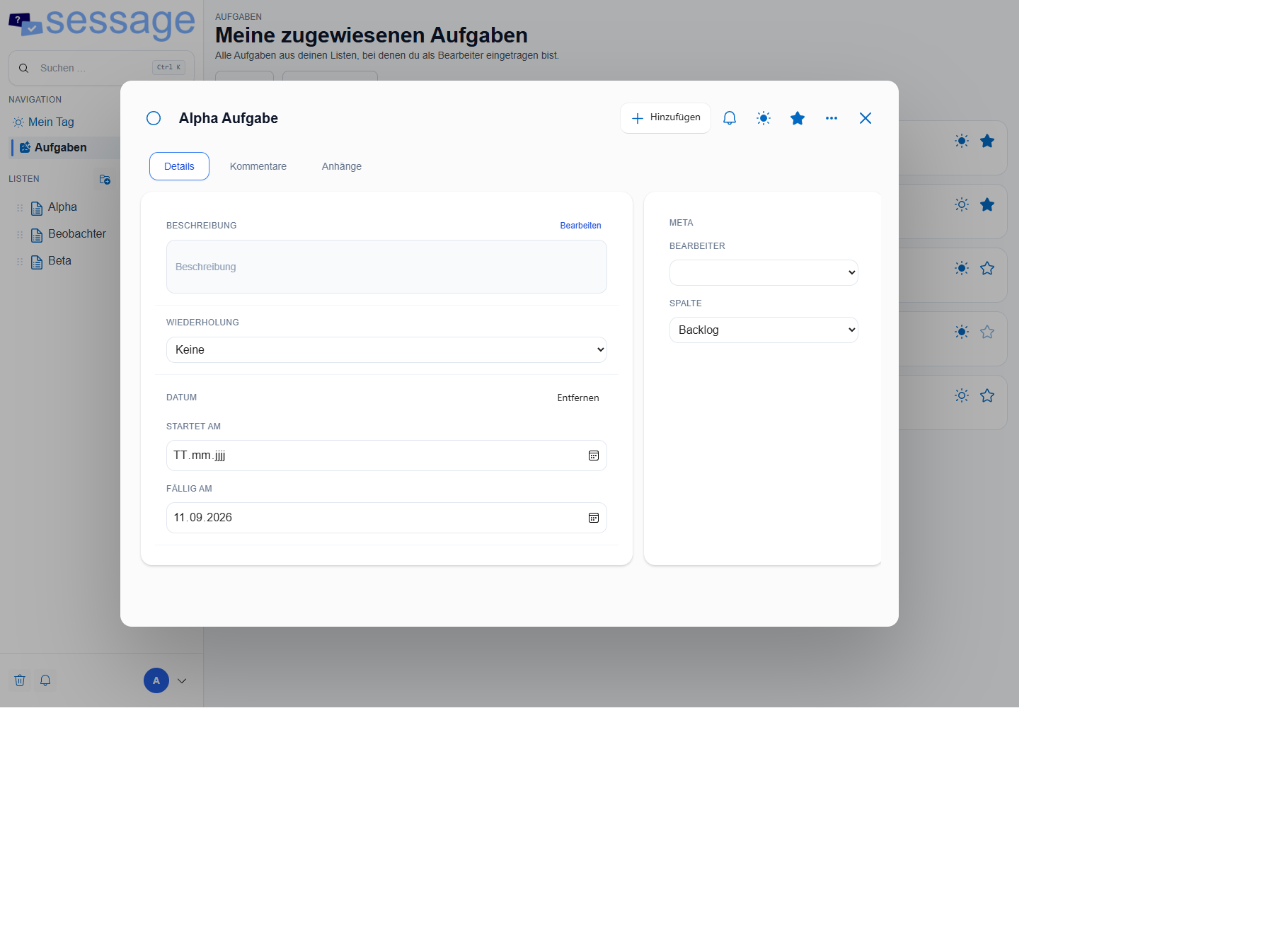
Comments, attachments, subtasks and activity remain attached to the task, giving the team one traceable work history.
Choose the right view
- List: compact overview and quick prioritization.
- Kanban: work organized by status or process stage.
- Table: structured comparison of many fields.
- Calendar: tasks organized by dates.
- Timeline: ranges and milestones at day, week or month scale.
- My Day: a personal daily selection that keeps tasks in their source lists.
- Dashboard: reporting, calendar, cross-list timeline and priority matrix in Enterprise.
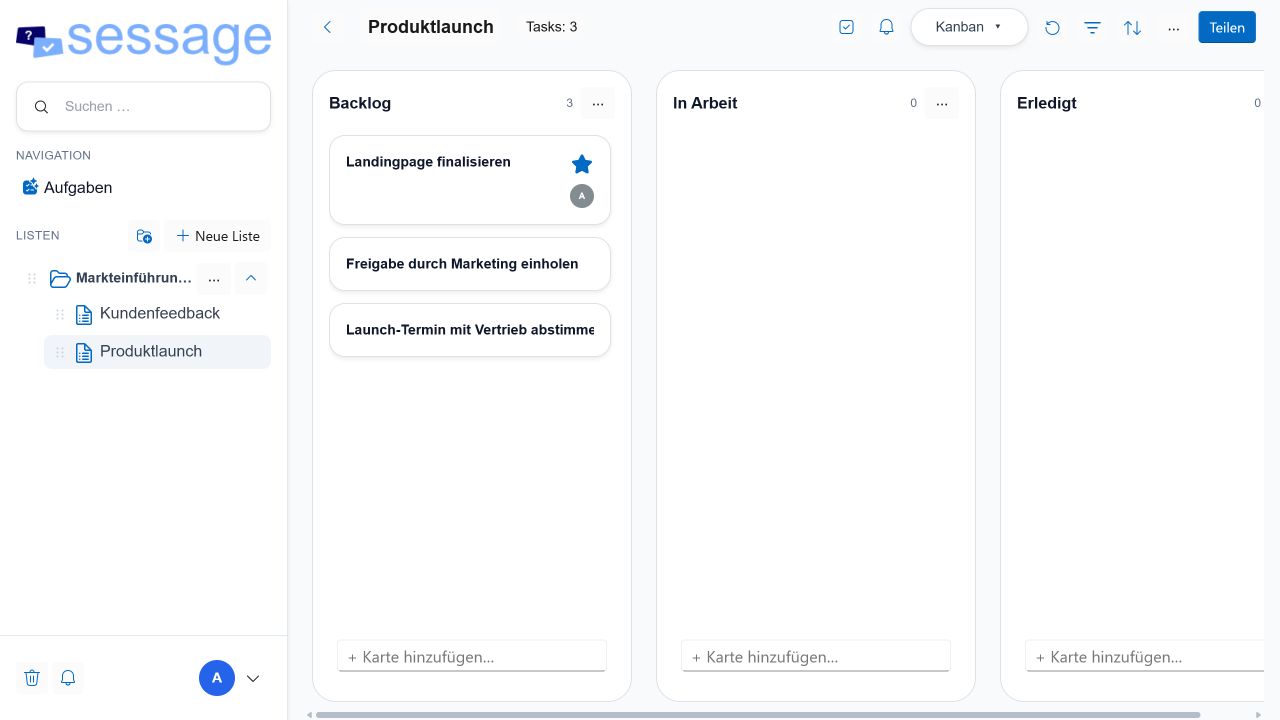
All views use the same tasks. Switching views does not copy or move data. Shared-list changes are synchronized across list views, Tasks, My Day, dashboards and portfolio dashboards. An open editor protects unsaved local input while incoming changes are deferred safely.
Invite the team
Open Share in a list, enter an email address and select the appropriate role. Share links are also available. Enterprise can additionally grant access to individual AD users and AD groups.
Continue
Compare the editions or choose an installation path.